Encrypted notes and files on Android: the guide
How to encrypt notes, documents and photos on Android so the server can’t read them: a step-by-step guide to Filarr, with screenshots.
Short answer
To encrypt notes and files on Android, you need an app that encrypts on the phone, before anything is sent, with a key the server does not hold. Filarr does this with AES-256-GCM: free on Google Play, usable without an account, and synced with Windows, Linux and the web if you want. (checked October 9, 2026)
Mathis Belouar-Pruvot
Your phone probably carries more sensitive documents than your computer: a photo of your ID, payslips, a lease, prescriptions, notes you would show nobody. And most of them live in apps that do not encrypt them end to end.
This guide explains what separates a truly private file from a file that is merely "stored securely", then shows, screen by screen, how to protect your notes and documents on Android with Filarr.
"Stored securely" does not mean "private"
Google Drive and Google Keep encrypt your data on their servers. But the keys are Google's: the service keeps the technical means to open what you put there. That is called encryption "at rest". It protects you from someone stealing a hard drive, not from the provider itself, or from anyone who gains access to its systems. We covered Keep in detail in our roundup of encrypted Google Keep alternatives.
End-to-end encryption flips the logic: your files are encrypted on your phone, with a key that never leaves it in the clear, and the server only receives unreadable bytes. The difference is explained in depth in our article on zero-knowledge encryption.
The three criteria of real protection on Android
Before installing anything, here is what to check.
- Encryption happens on the phone, before anything is sent. If the app uploads your files in the clear and encrypts them "on arrival", the server has seen them.
- The key derives from your password, and the server does not hold it. That is what makes the provider unable to read, even if it wanted to. The honest corollary: if you lose your password with no way to recover it, nobody can reopen your files.
- The phone itself is locked down. Perfect encryption is useless if anyone can open the app on your unlocked screen, or if its screens show up in the recent apps list.
Filarr ticks all three. The technical detail (AES-256-GCM, key derivation, what our servers see) is on the Security page.
The step-by-step guide
1. Install Filarr
The app is free on Google Play. It also exists for Windows and Linux, from the download page, and in the browser at app.filarr.com. There is no iPhone app, and no announced date; the web app works in Safari.
2. Choose: on the phone only, or synced
On first launch, Filarr asks how you want to use it:
- "Local only": no account, no email address, nothing is sent. Your files stay encrypted on the phone.
- "With cloud sync": an account syncs your vault across your devices, always encrypted before it leaves.
- Already using Filarr on your computer? Pairing hands your vault key to the phone, encrypted, without our server being able to read it.
Either way, you set an encryption password. Your files' key derives from it. The three paths and pairing are detailed in our post on Filarr's Android release.
3. Put your documents somewhere safe
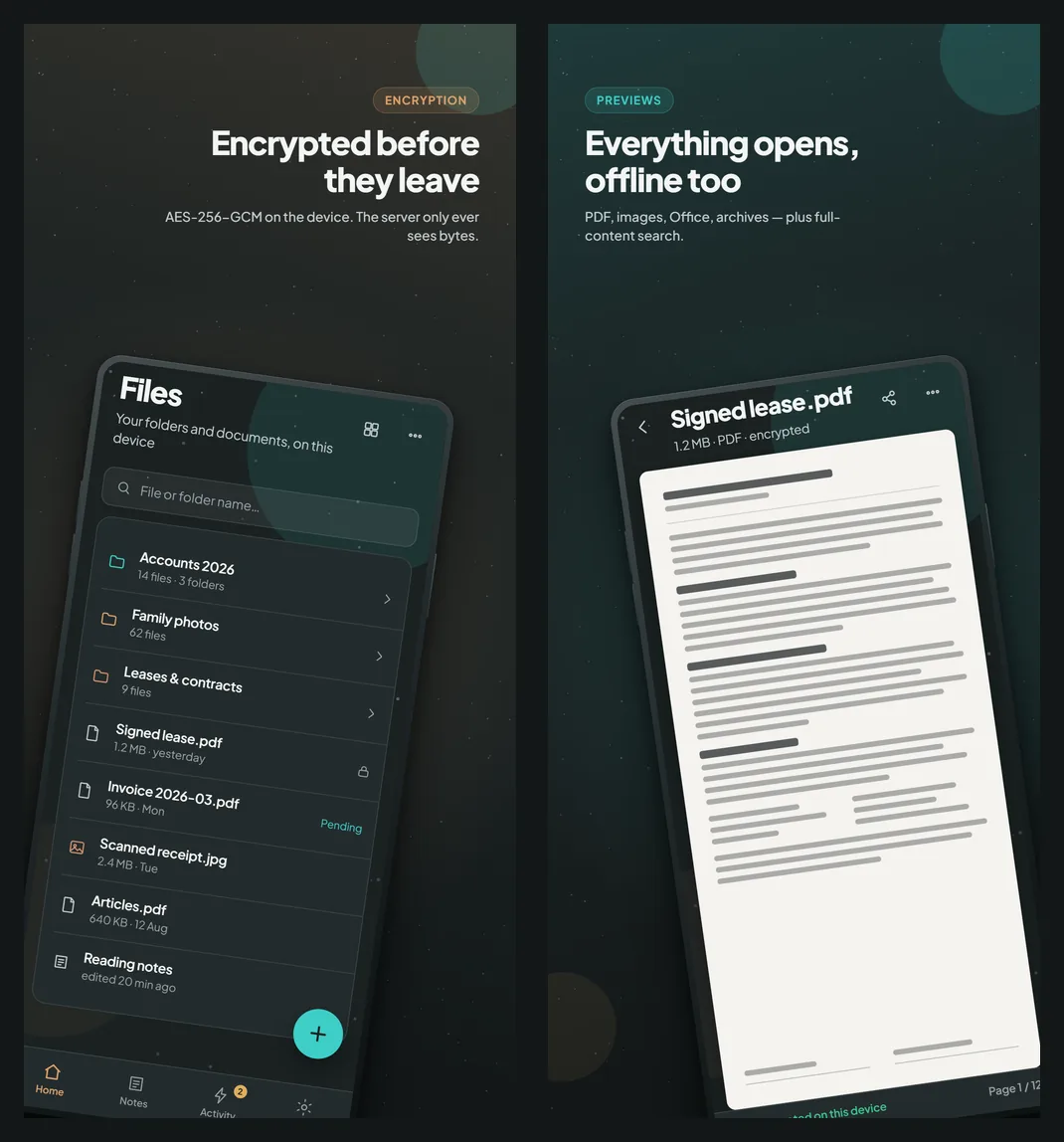
Import your documents from the "+" button. For photos, you pick them in Android's picker: the app has no access to your whole gallery, only to what you hand it. Each file is encrypted as soon as it enters the vault.
Once filed, they stay usable:
- previews open without leaving the app, even offline: PDF, images, Word, Excel, archives, plus text, Markdown, audio and video;
- search can read inside your documents, with an encrypted index that stays on the phone: turn it on in Settings › Document content;
- you decide what takes up space on the phone: a file downloads when you open it, or stays available offline if you pin it.
4. Write notes nobody else reads
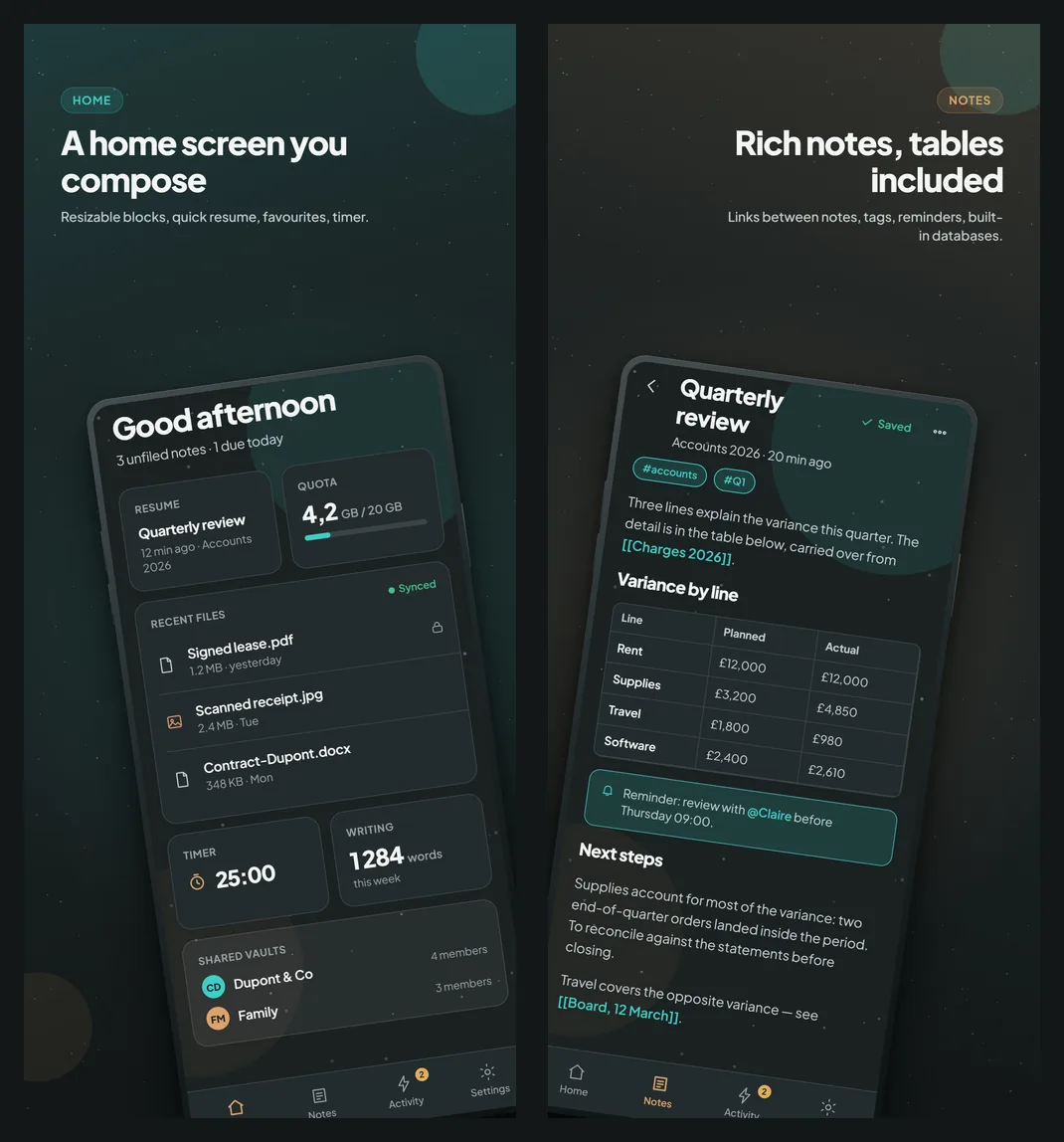
The note editor is the desktop one: headings, lists, tasks, tables, links between notes, tags, reminders, and built-in databases. Your note titles are encrypted just like their content: the server sees neither.
The home screen is made of blocks: resume your last note, recent files, quota, timer, shared vaults. You keep what you use within thumb's reach.
5. Lock the app, not just the vault
This is the part most apps forget.
- Auto-lock and biometric unlock: your fingerprint or face reopens the vault, and it closes on its own after a delay.
- Screenshots blocked by default: Android refuses screenshots inside Filarr, and its preview in the recent apps list stays blank. If you need them, Settings › Security › "Allow screenshots" brings them back.
- Two-factor authentication on the account, if you have one.
6. Share without exposing
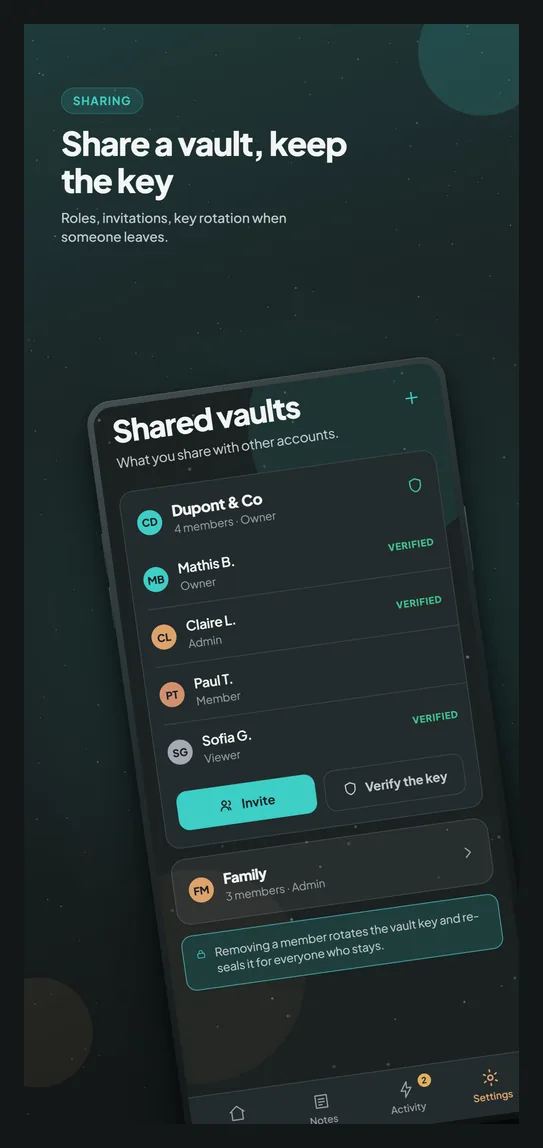
Sharing a sensitive document is often the moment it leaks: a plaintext attachment, a public link left lying around. Filarr offers two ways to do it.
- Shared vaults, for ongoing work: you invite people, give them a role (read-only included), and removing someone draws a new vault key for those who remain. To be honest: that protects what comes next, not what the person had already downloaded.
- Filarr Send, for a one-off: an encrypted link whose key lives in the link itself and never on our server. Without an account, a send can go up to 4 GB, all files combined.
What our servers see, and what they don't
| Visible to Filarr? | |
|---|---|
| The content of your files and notes | No, encrypted on the phone |
| Your note titles, your file names in the clear | No |
| The number of your files, their size, their last-modified date | Yes, that is what syncing needs |
| Your email address | Yes, if you create an account |
| Usage statistics | Only if you turn them on; off by default |
No ads, no tracking: what leaves the app, and how to turn it off, is described on the privacy page of the help. The full list of what our servers know is on the Security page.
Frequently asked questions
Is Filarr free on Android?
Yes. The free plan gives you 5 GB of synced storage, with no time limit, and local mode without an account costs nothing. The Solo and Pro plans add space and devices: the details are on the pricing page.
Is there an iPhone version?
Not for now, and no date is announced. The web app, app.filarr.com, works in Safari with the same encryption.
What happens if I forget my password?
Nobody can recover it for you, not even us: that is the price of a key the server does not hold. Write your password down somewhere safe. With an account, keep your recovery phrase carefully.
Why can't I take a screenshot in Filarr?
On purpose: the app protects what is on screen. Settings › Security › "Allow screenshots" lifts that protection if you need it.
Can I reach my files on my computer?
Yes, with an account: the same vault syncs with Filarr for Windows and Linux, from the download page, and with the web app.
Getting started
- Install Filarr from Google Play.
- Choose "Local only" to try it without an account, or create one to sync.
- Import a first sensitive document, and watch it open in a vault only you can read.
If something does not work as described here, tell us from the app (Settings › Help and feedback) or through the contact page.
Related articles
- AnnouncementFilarr is on Android: how it works, and what comes nextThe Filarr Android app is available on Google Play. Three ways to start, the pairing that moves your key from one device to another without going through us, what the phone can do, what it cannot do yet, and what comes next.
- GuideHow to Set Up Bring-Your-Own-Storage (S3) Sync in FilarrSet up bring-your-own-storage (S3) sync in Filarr: prepare a bucket, add your provider, test the connection. Files are encrypted on your device before upload.
- GuideHow to Back Up Your Encrypted Notes Without Breaking Zero-KnowledgeBack up encrypted notes without leaking them: use encrypted archives, zero-knowledge sync, and offline recovery keys so copies survive disaster but stay private.